 button to display
the Client Documents Screen.
button to display
the Client Documents Screen. The feature allows users to request a document to be printed or put on the print list to be printed later. Only Client Level Documents appear in the Document list. To create this type of document, see Client Level Documents.
From any
tab of the Clients account, click the button to display
the Client Documents Screen.

Select the Document to be printed or to be put on the print list by clicking on the listing of the document.
To find a
document on the list, click the  button to display the
Document Search window.
button to display the
Document Search window.
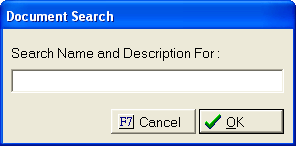
Enter the
document name or description and click the  button and all
matching documents will be listed. To
end the search, click the
button and all
matching documents will be listed. To
end the search, click the  button.
Once the document is selected,
Click the
 button to put the document on the default print list
to be printed in the future.
button to put the document on the default print list
to be printed in the future.
Click the
 button to select another print list to add the document.
Click the
 button to print the document.
Click the
 button to display the Preview
Documents screen.
button to display the Preview
Documents screen.
Click the
 button to display the Document
Properties.
button to display the Document
Properties.
Click the
 button to print a list of all client documents.
Click the
 button to exit the Documents Screen.
For users that have the Document Management Module, Click the  button to display the image/file
import screen. This
feature will add the document to the Images for this account and may put
the document on the print list to be printed later.
button to display the image/file
import screen. This
feature will add the document to the Images for this account and may put
the document on the print list to be printed later.
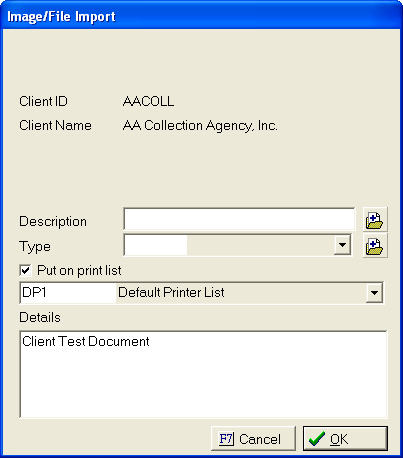
 button. button.
  box next to Put on print list.
 list.
list. Click the button to image the
document.