 button to display the Document Preview Screen.
 This feature allows user to view the variables to be inserted into the Client Document. From this screen, users can enter/change document variable values, edit the document in the word processor, print or put on print list.
Click the
button to display the Document Preview Screen.
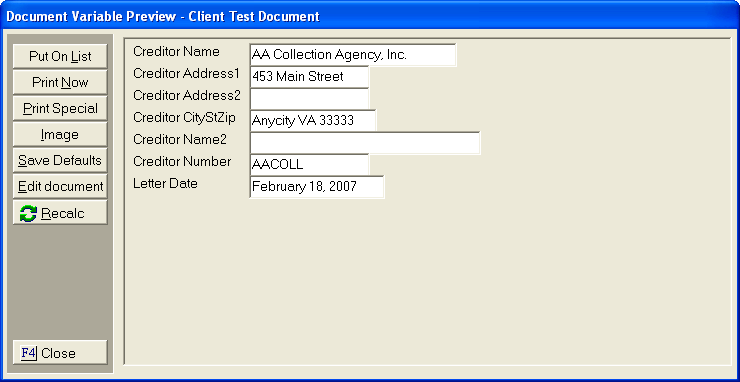
Enter any values in the variable fields.
Click the button to add the document to the default print list.
Click the
 button to print the document.
Click the
 button to select a different print list or printer.
Click the
 button to save the variable values on default variables.
Note: Only save if there are default variable in the document and the default variable should always have the value entered.
Click the  button to view the
document in the word processor. The
document can be edited and printed from the word processor.
button to view the
document in the word processor. The
document can be edited and printed from the word processor.
Click the  button to recalculate
formulas. This
is most often used when a default/fill in the blank variable is used in
the formula.
button to recalculate
formulas. This
is most often used when a default/fill in the blank variable is used in
the formula.
Click the  button to exit this
screen.
button to exit this
screen.
For users that have the enhanced document
imaging module, Click the  button to display the image/file
import screen. This
feature will add the document to the Images for this account and may put
the document on the print list to be printed later.
button to display the image/file
import screen. This
feature will add the document to the Images for this account and may put
the document on the print list to be printed later.
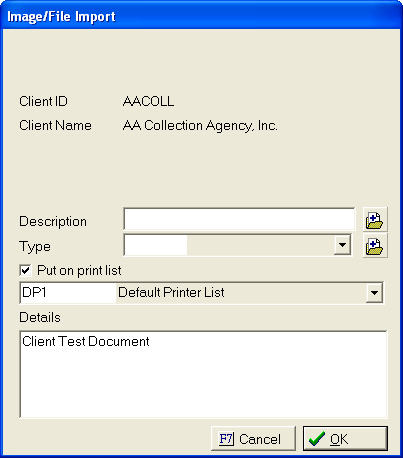
 button. button.
  box next to Put on print list.
 list.
list. Click the  button to image the
document.
button to image the
document.