 button to bring up
the Network Processes Screen.
button to bring up
the Network Processes Screen. From the
main screen of CollectMax, click the button to bring up
the Network Processes Screen.
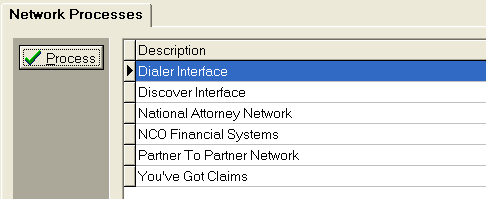
Select the
Dialer Interface and click the  button.
User may also double click on the Interface Name.
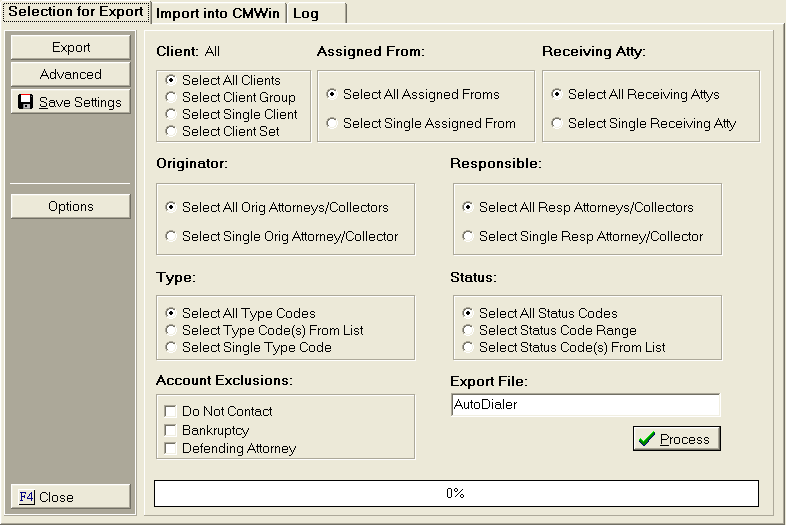
The Dialer Export Screen will be displayed.
Click the
 button to display the Export Options screen.
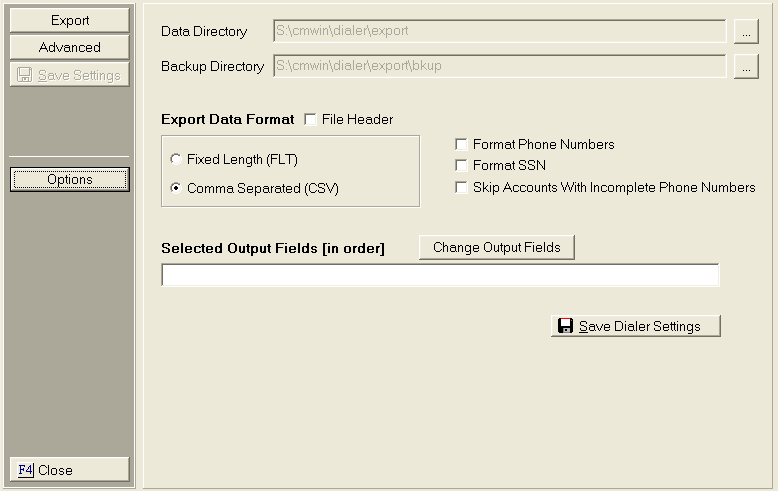
The Data Directory and Backup
Directory should be set up by JST Technical Support when the interface
is installed. To
change these paths, create a data directory and backup directory on your
firm's network. After
click the  button next to the path to be changed. Browse
to find the directory on the network and click the
button next to the path to be changed. Browse
to find the directory on the network and click the  button.
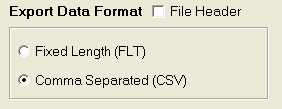
Select the
Export Data Format. Click
the  button next to the selection.
Contact your Dialer Program Provider to find the required file type.
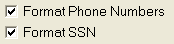
The dialer
will export the Debtor's phone number without formatting as1234567890.
To have
the number formatted as (123) 456-7890, click the  box next
to Format Phone Numbers.
box next
to Format Phone Numbers.
The dialer
will export the Debtor's social security number without formatting as
123456789. To have the number formatted as 123-45-6789, click the box next to Format SSN.

To exclude
account that have an incomplete phone number, click the box next to Skip Accounts
With Incomplete Phone Numbers.
Note: If including more than one Debtor Phone Number in the export file, the export will include the account the account if any of the selected phone numbers are potentially valid phone numbers.

Each dialer program requires certain information to be included in the export file. Please check with the provider to see what fields they require and in what order these fields should be listed in the file.
To select
the fields, click the  button. The Dialer Field Selection
Screen will be displayed.
button. The Dialer Field Selection
Screen will be displayed.

From the
Available Variables List, click
on the First Field to be included in the file. Click
the  button to add the variable to the Selected
Variables List. Continue
until all fields desired fields are in the selected list. The
order of the variables in the list is the order of the fields in the export
file. To
change the order in the selected list, select the variable to move and
click the
button to add the variable to the Selected
Variables List. Continue
until all fields desired fields are in the selected list. The
order of the variables in the list is the order of the fields in the export
file. To
change the order in the selected list, select the variable to move and
click the  button or the
  button. The
button will move the field up the list. The
button will move the field down the list.
button. The
button will move the field up the list. The
button will move the field down the list.
To remove
a field from the selected list, click the  button. The field
will be moved back to the Available List. Click
the
button. The field
will be moved back to the Available List. Click
the  button to remove all selected variables from the
Selected Variables List.
button to remove all selected variables from the
Selected Variables List.
Note: The export file is required to have either the Claim Number, Reference Number or both so the Dialer Service can return these number in the results file.